Why Windows 11 Silences Your Alerts (And How to Fix It)
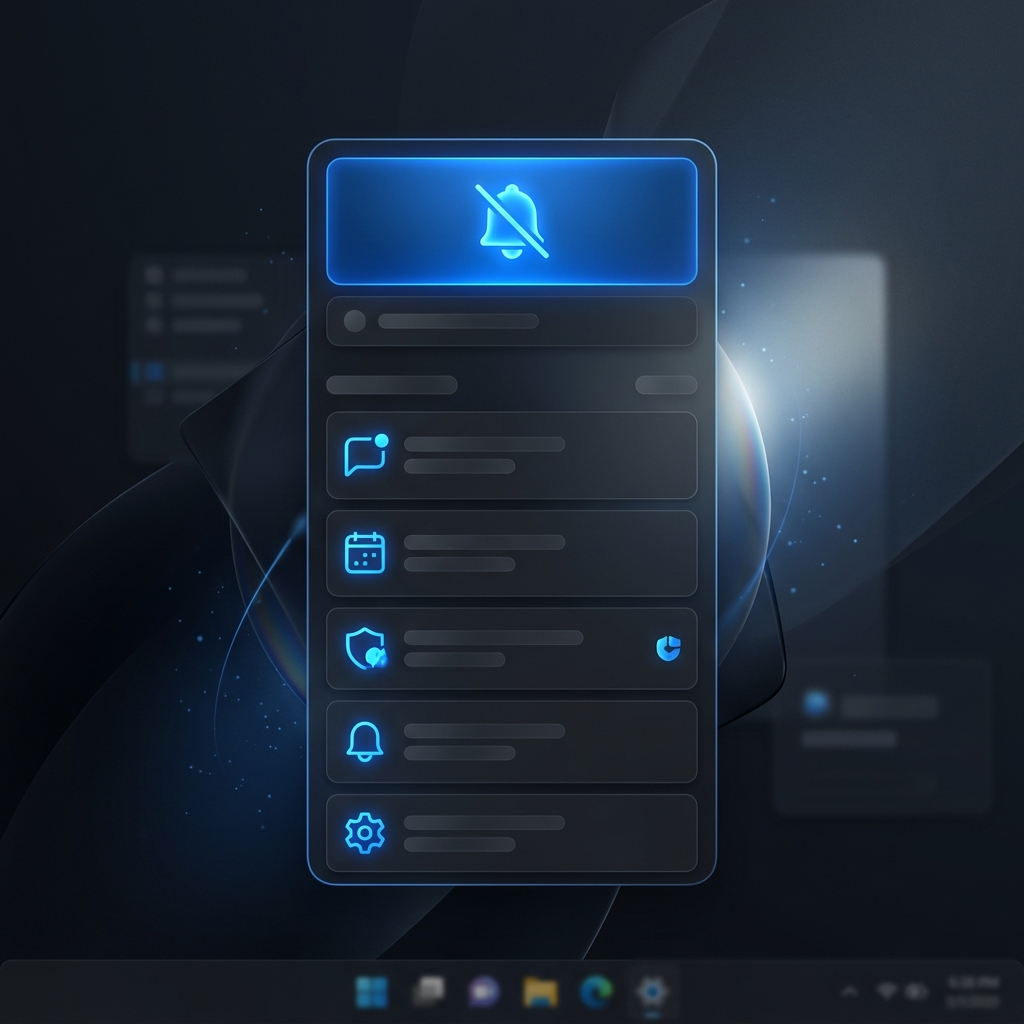
You know the feeling. You glance at the clock, and it's 10:04. You had a crucial cross-functional meeting at 10:00. You check your taskbar, click the little bell icon, and there it is: a silent, unread notification from Outlook sitting quietly in your Action Center. You never heard a sound. The banner never appeared. Why does this keep happening?
Windows 11 introduced several quality-of-life improvements aimed at reducing distractions. Unfortunately, for remote workers whose entire day revolves around scheduled video calls, these anti-distraction features are causing acute cases of Calendar Blindness.
The Culprit: Focus Assist and Notification Grouping
By default, Windows 11 tries to be "smart" about when to interrupt you. If you are playing a game, sharing your screen, or running an application in full screen, Windows automatically turns on Focus Assist (now simply called "Do Not Disturb" in recent updates). When this mode is active, all notifications—including critical calendar reminders—are sent straight to the notification center without a sound or a visual banner.
Furthermore, Windows 11 aggressively groups notifications by application. If you have three unread emails in Outlook, your meeting reminder gets stacked underneath them. You see a tiny "Outlook (4)" text, but the meeting reminder itself is buried.
🔔 The MeetingBell Solution
Stop fighting with the OS settings. MeetingBell is designed to operate completely independently of the Windows Action Center. When a meeting is starting, MeetingBell renders its own disruptive popup window and plays its own audio, ensuring you never miss an alert because of arbitrary OS grouping rules.
How to "Fix" Your Windows Calendar Settings
If you want to try wrangling the native Windows notification system, here are the steps you must take to give your calendar alerts a fighting chance:
- Disable Automatic Do Not Disturb: Go to Settings > System > Notifications > Turn on do not disturb automatically. Uncheck "When duplicating my display" and "When using an app in full screen."
- Prioritize Calendar Apps: Under "Set priority notifications," explicitly add Outlook, Google Chrome (if using web calendar), or the native Calendar app.
- Change Banner Styles: Find your calendar app in the Notifications list. Change the notification style from "Banner" to "Alerts" so they stay on screen until you manually dismiss them.
Even after executing these steps, you are relying on a fundamentally flawed paradigm. An operating system is designed to handle hundreds of notifications a day. It treats a Slack message from your coworker with the same visual hierarchy as a meeting with the CEO. If you want to know why your Outlook calendar is not notifying you, it's because the OS architecture is not built for high-stakes time management.
The Hardware Issue: Audio Routing
Another frequent reason alerts fail is audio routing. In Windows 11, if you disconnect your Bluetooth headphones, the system audio doesn't always elegantly revert to the laptop speakers. A silent notification plays to an empty Bluetooth connection. Because standard calendar alerts play only a short 1-second chime, by the time you realize the sound didn't route correctly, the alert is over.
A true Meeting Reminder App solves this by playing continuous audio that requires user acknowledgment, making it impossible to "miss" the chime.
People Also Ask (PAA)
Why am I not getting calendar notifications on Windows 11?
Windows 11 often groups calendar notifications into the Action Center without playing a sound, especially if Focus Assist (Do Not Disturb) is turned on automatically. This happens frequently if you are duplicating your display or running an app in full screen.
How do I make my Outlook reminder stay on screen?
You can change Outlook notifications from 'temporary banners' to persistent 'alerts' in the Windows 11 Settings > System > Notifications menu. Select the app and check the option to keep the notification on screen. However, they will still respect global Do Not Disturb rules.
Does MeetingBell bypass Windows Focus Assist?
Yes. Because MeetingBell is a dedicated meeting alert system, it operates independently of the standard Windows Action Center queue. It generates its own topmost UI window and plays audio directly, ensuring your critical meeting reminders play a loud audio alert even when Focus Assist is enabled.